Copier not printing on the Gold Coast: sort it into one of four piles
Every case we hear about lands in one of four places. The job never left the computer. The job left and is sitting in a queue. The job reached the machine and the machine is holding it. Or the machine cannot print at all.
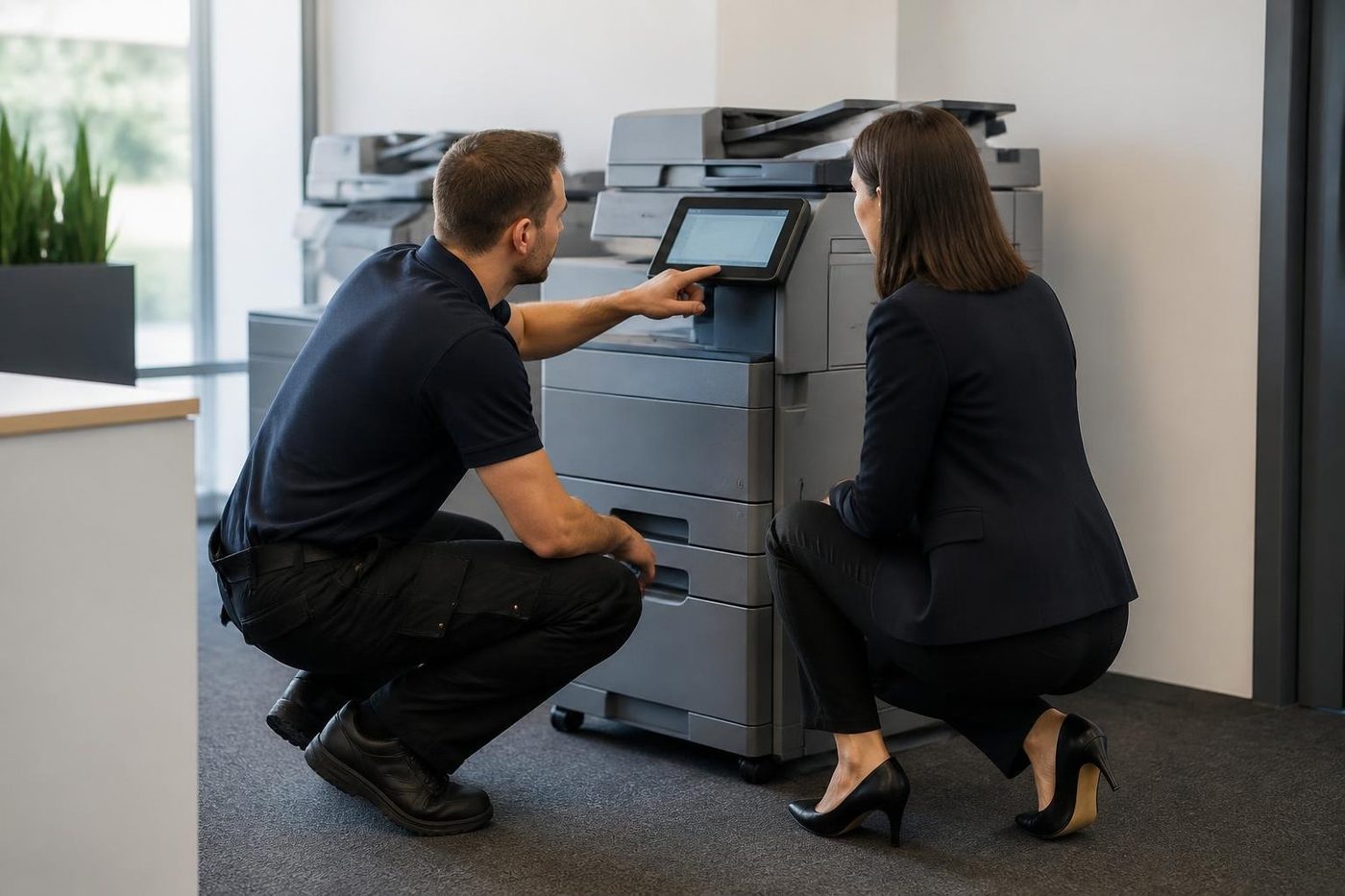
Each pile has a different owner. The first is the person at the desk. The second is whoever looks after the print server or the IT. The third is a setting at the machine. The fourth is us. Finding the pile takes about five minutes if you go in order.
Pile one: it never left the computer
Check what the computer thinks. Open the printer list, find the copier and look at its status. If it says offline, paused or an error, the job is stuck at your end. A paused queue is a surprisingly common cause, because somebody tapped the wrong menu option on the way to something else.
Ask whether it is everyone or just one person. If a single laptop is stuck while the rest of the office prints, the trouble is that laptop: the wrong printer chosen, a driver that updated overnight, a saved login that has expired. Delete the stuck job, restart the print spooler or simply restart the computer, and try one page.
Pile two: it is in the queue and not moving
A single bad job can block a whole queue. A massive file, a corrupt document or something with an embedded font the driver does not like will sit at the front and refuse to leave. The ones behind it wait forever.
Cancel the front job and the queue often begins to move at once. If it does not, your IT provider may need to clear a shared queue on a server. Tell them what you tried, so the first hour is not spent repeating it.
Pile three: the machine has it, and is holding it
Plenty of offices have secure print switched on. The job sits at the machine until someone signs in or enters a code. Staff who print from a new laptop or a new account find the job in a different place from usual, or find it has timed out.
Look on the panel for held jobs, private jobs or a job list. Check the paper settings too. A job that asks for A3 colour card from a tray that has A4 plain in it will wait politely for the right paper, and the panel may only show a small icon. Strata and legal offices that print on letterhead from the bypass tray hit this all the time.
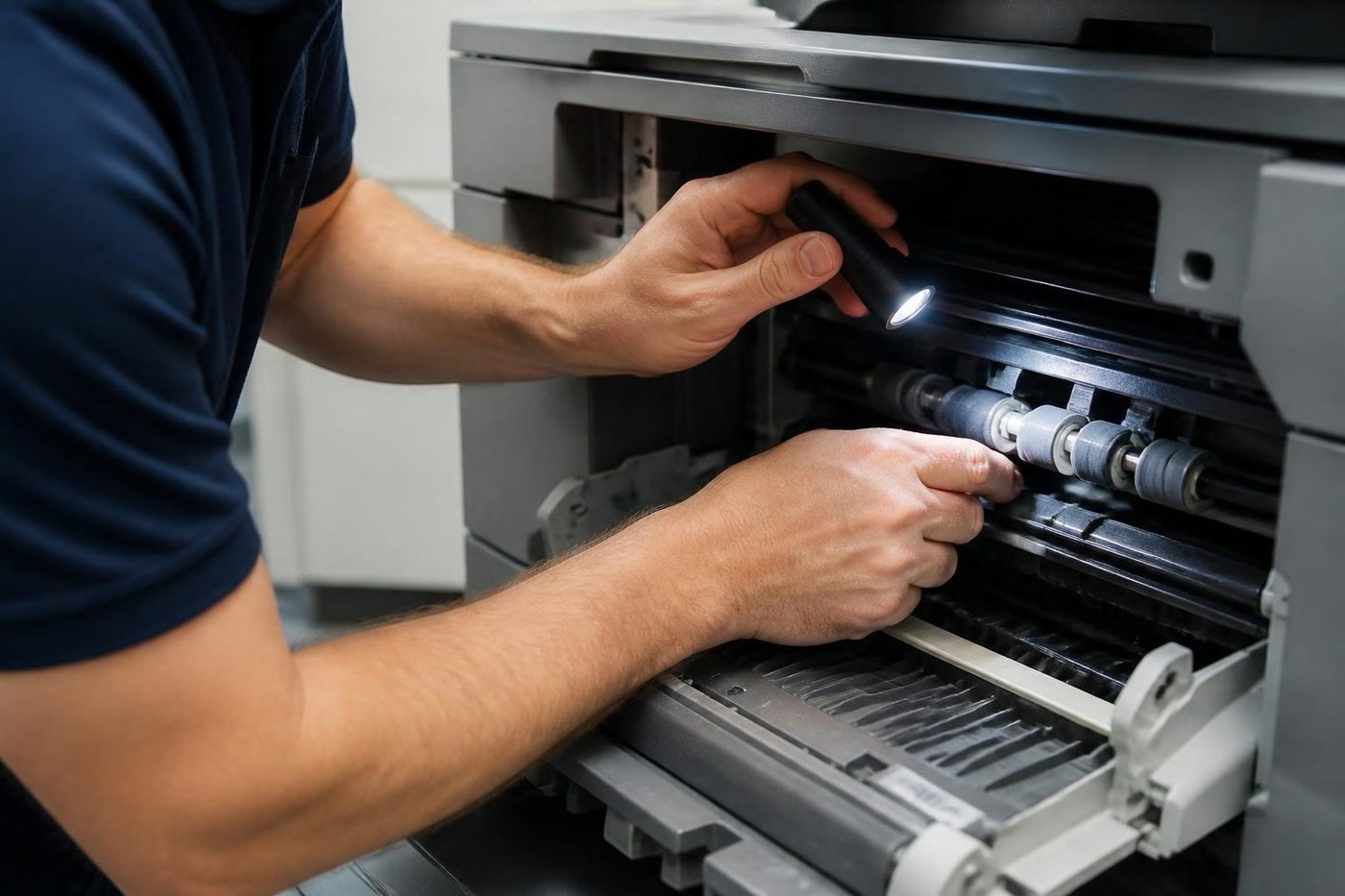
Then the plain things: paper, toner, waste container, a door not fully closed, a finisher out of staples. Many machines refuse to print at all with an empty waste bin. Read every message on the screen.
Pile four: the machine cannot print
| What the machine does | What it usually points at |
|---|---|
| Screen frozen or blank, power light on | Controller crash, a power upset, a firmware lock up |
| Warms up for ages, then a service code | Fuser heater area |
| Prints test page from panel, not from computers | Network or driver, not the machine |
| Prints from the panel, nothing from one particular tray | Tray lift, sensor or paper size setting |
| Prints blank pages | Toner supply, drum or a laser path issue |
| Takes the job, spins, then stops with a jam icon and no paper | A sensor, dust in the path or a door latch |
A test page from the machine's own menu is the single most useful thing you can do. If the machine prints it, the machine is fine and the trouble lies in the network or the computer.
Things that changed last week
A copier that was fine on Friday and silent on Monday has usually been touched. Look for a new router put in by the internet provider, a switch rebooted after a storm, a laptop update, an IT visit, a move of desks, a change of password on the account used for scanning. Gold Coast offices often have a power flicker in an afternoon storm, and a machine left switched on through a rough night may come back in a half awake state.
Switch the copier off at its own power key, wait a minute and switch it back on, once. Many printing problems on a machine clear on a restart because it registers again on the network and reads again its queue.
Shared queues, servers and the drivers behind them
Many Gold Coast offices print through a small server or a cloud service rather than straight to the copier. That adds a layer. The job leaves the computer, goes to the server, waits in a queue there and then goes to the machine. A hiccup on the server stops the whole office at once, which looks exactly like a dead copier.
The driver is the other layer. A generic driver gets the job through but may not understand a tray, a finisher or a staple option, and the machine holds the job while it works out what to do. A driver for the exact model is better, and installed from one source for everyone, so ten computers do not carry ten versions.
If the problem started on exactly one day, ask what the IT provider did that week. A patch to the server, a new Windows build or a security tool that blocked a port are good candidates.
The Monday morning after a storm
We hear this one a lot. The office was fine on Friday. A cell went over on Saturday night, the power dipped, and on Monday the copier says ready but nothing prints. Usually the machine has restarted with a changed network address, or the router has come back in a different state, or a job was caught half sent and is blocking the queue.
Switch the copier off and on, wait for it to settle, print a configuration page and compare the address with what the computers are using. Then clear the queue and send one page. Most Mondays end there.
Which job is it
The same machine can behave differently by task. A copy from the glass works but a print job does not: that points at the connection, not the engine. Printing works but copies from the glass come out blank: that points at the scanner. Everything works except colour, or one finisher: that is a narrower issue and the description helps us bring the right part.
If the machine prints perfectly from the panel and then fails from every computer in the office, the cause is almost always the network, a changed address or a changed password. Our guide on printers showing offline covers that side in detail.
When to ring
If you have worked through the piles and a test page from the panel will not print, ring. Have the model, the message, the pattern and the list of what you have already tried. When a repair is needed, the visit is at your premises and the price is agreed on the phone first.
If the lines are busy the call is logged and returned, and the contact form takes a photo of the panel. Same day service is available.
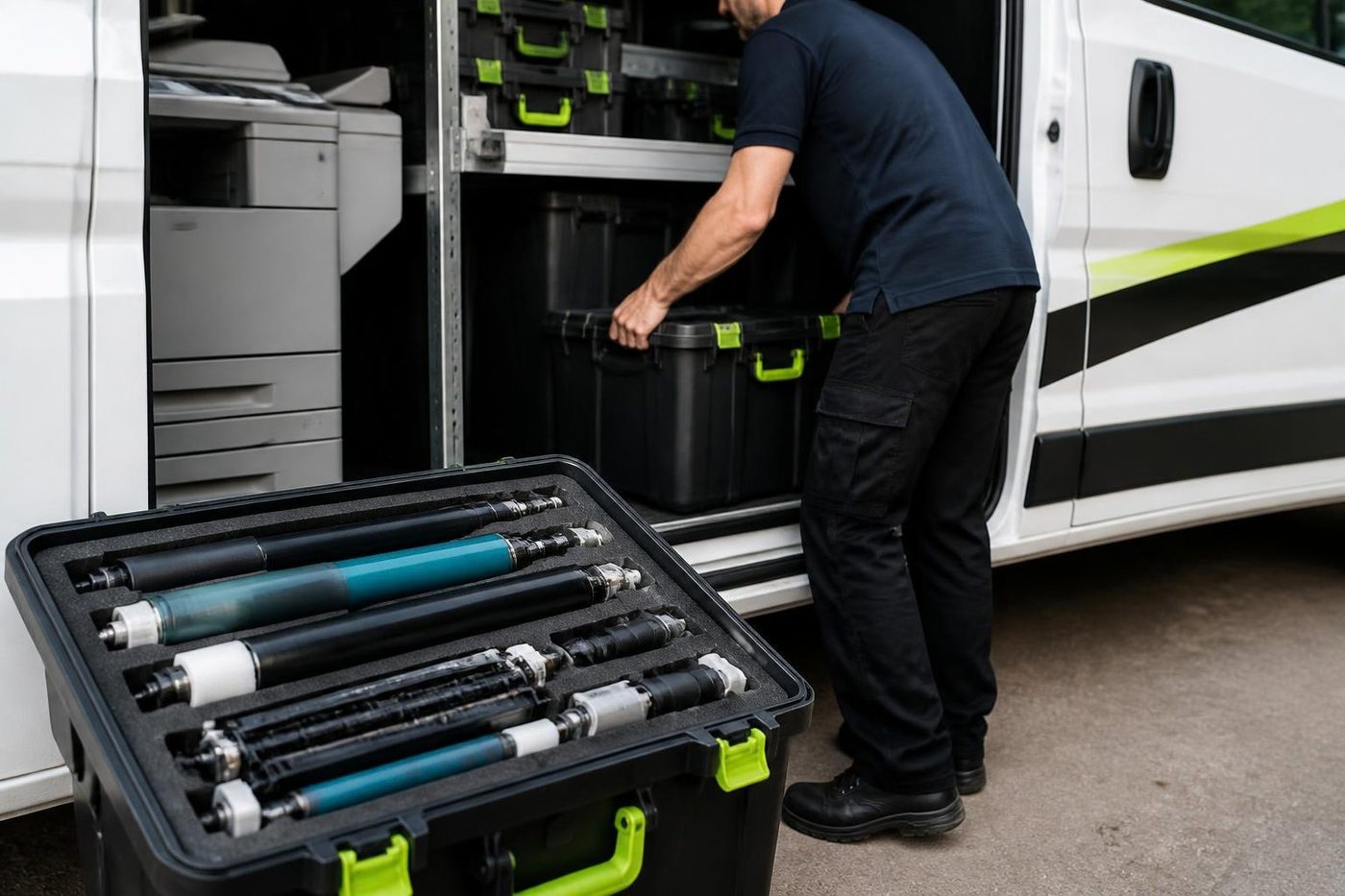
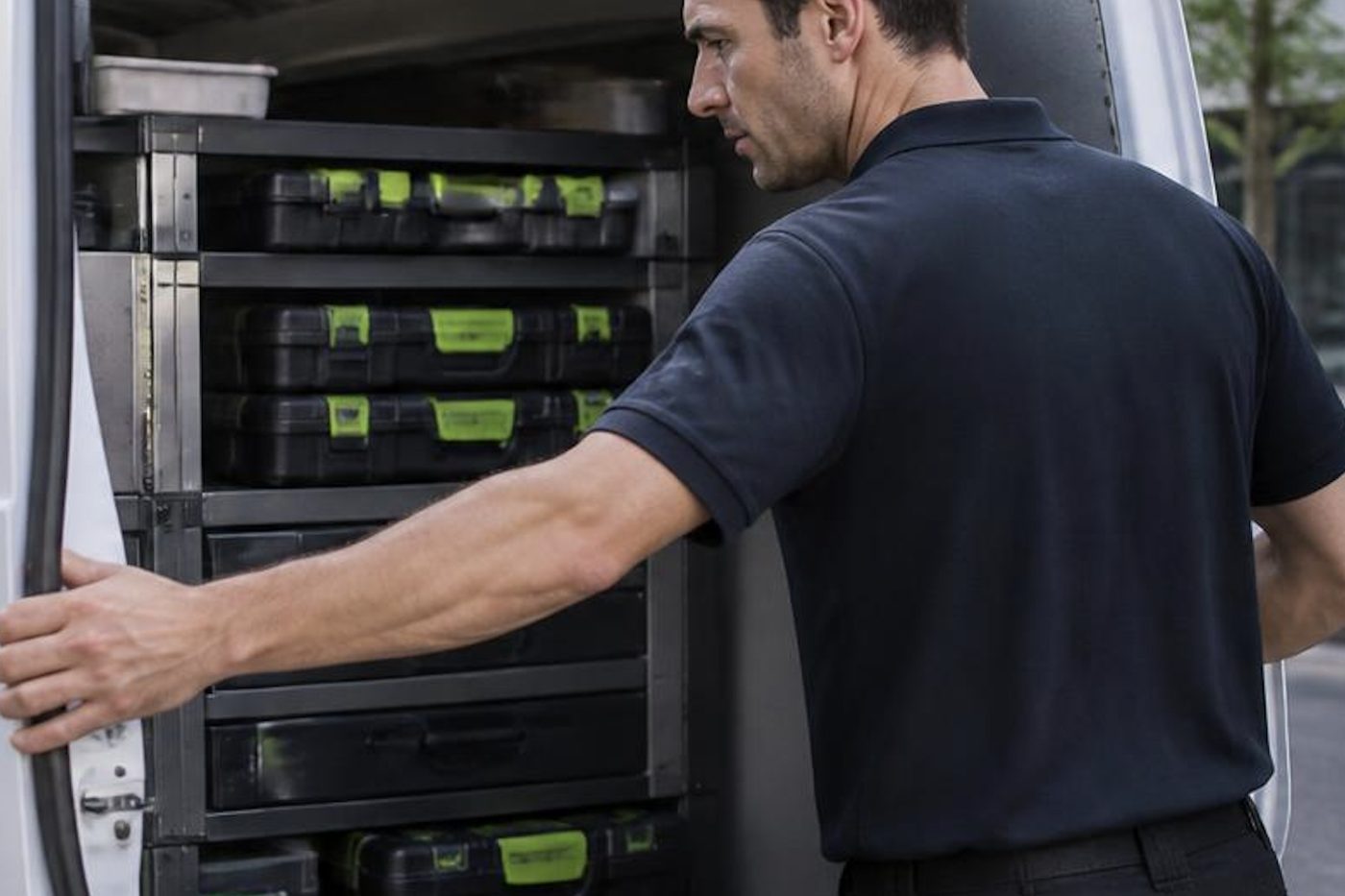
Parts on the van
The right part, in the van, on the day
A technician who has to leave to chase a roller turns a short call into a long one, and your staff stand around wondering whether it will be done by lunch. We stock the common spares for the makes we see most, and we plan the load from what you told us on the phone.
No technician carries everything, and we will not pretend otherwise. What we do is arrive with a good chance of finishing, and 98% of our repairs are fixed on the first visit.
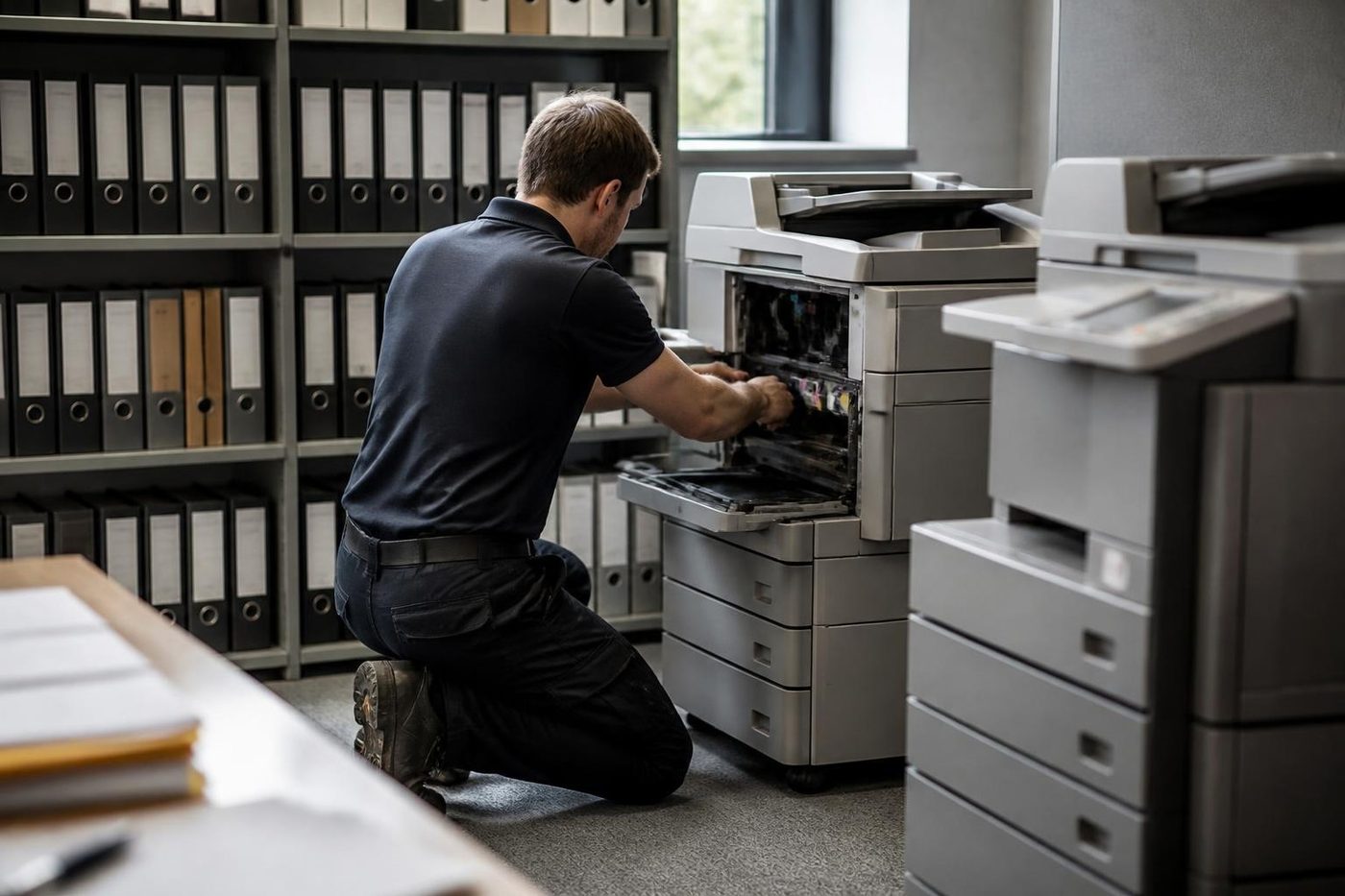
- Common spares carried. Drums, rollers, fusers and belts for the popular makes.
- Load planned. The call notes decide what goes in the van.
- Honest about gaps. If a part must be ordered we say so before we leave.
Keep reading
 Copier and printer faultsPick the symptom, get the next step.
 Printer offline and network faultsThe printer that vanished overnight.
 Scan to email not workingA scan that leaves the glass and never arrives.
 Commercial printer repairsWorkgroup lasers and fleets, repaired where they sit.
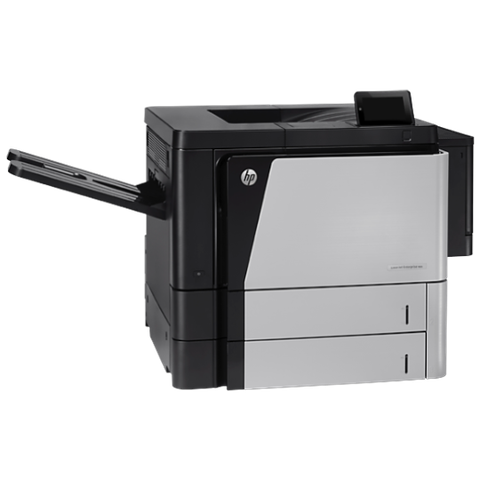 HP printer repairsLaserJet codes read like a sentence. We read them aloud.
Buy, sell and lease
Buy, sell and lease commercial copiers on the Gold Coast
We also sell new and refurbished commercial copiers and buy used ones. Same team, same technicians.
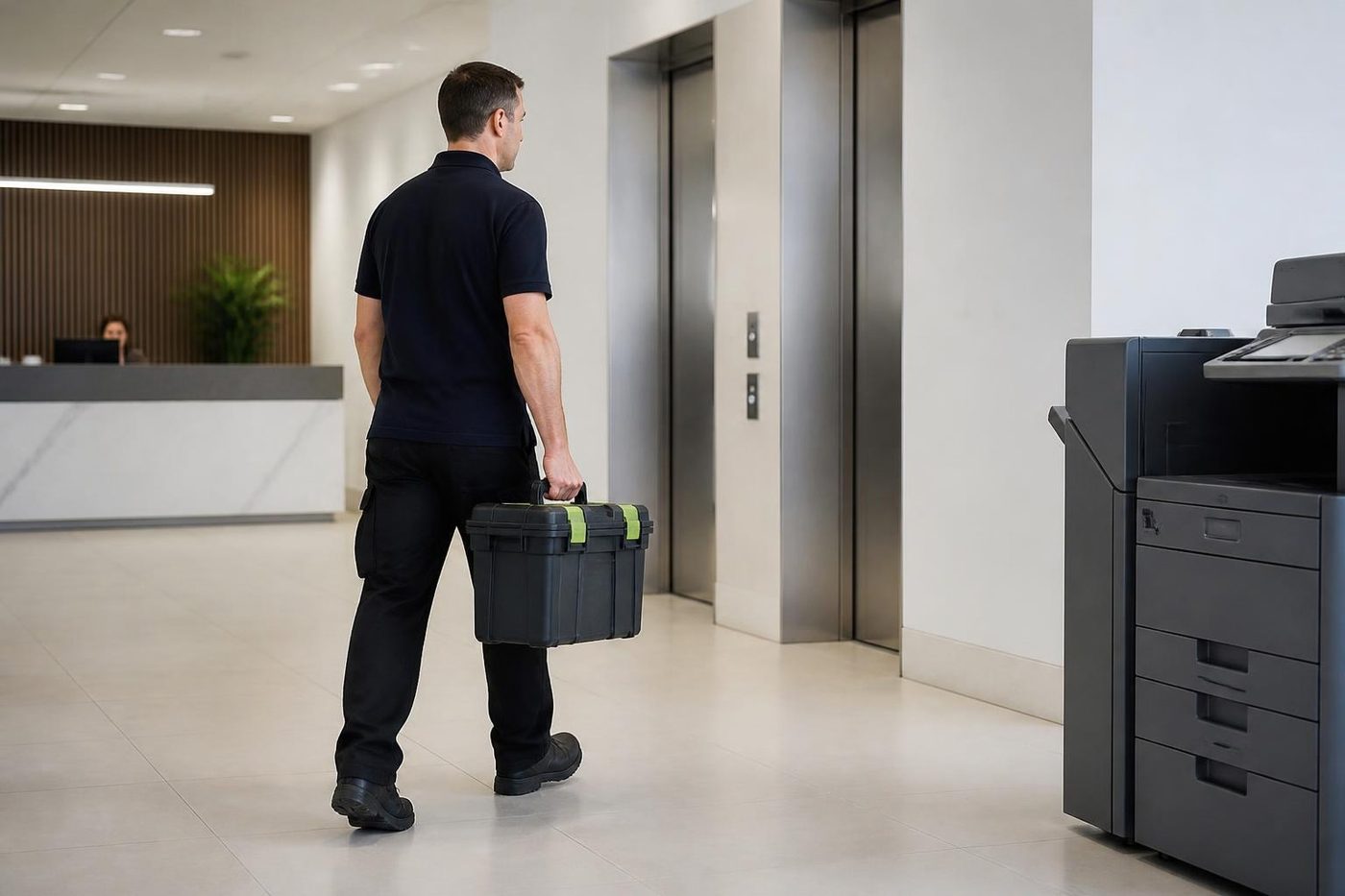
On site on the Gold Coast


Common questions from Gold Coast offices
Why is my copier not printing but showing no error?
Often the job is held, paused or stuck in a queue. Look at the printer status on the computer and the job list on the copier panel.
One person cannot print and everyone else can. What now?
Look at that person's computer: the printer chosen, the driver, the stuck job, the saved login. The copier is probably fine.
Can one big file block everyone?
Yes. A large or corrupt job at the front of a shared queue stops the ones behind it. Cancelling it often releases the lot.
It prints a test page from the panel but not from my computer. What does that mean?
The machine can print. The cause is in the network, the driver, the queue or the login.
Does an empty waste toner container stop printing?
On many machines, yes. The panel will normally say so.
Should I switch it off and on?
Once, using the machine's own power key, with a one minute pause. More than that adds nothing.
How much does a repair cost?
It depends on the cause, and we talk it through on the phone before anyone is booked.
Do you handle the network side as well?
We deal with the printer's own network settings and work with your IT provider on the rest.