Scan to email not working on the Gold Coast: start with the message
Does the copier say anything? A good machine reports a clear failure: could not connect to server, authentication failed, send error, file too large. Write it down word for word. Those four phrases lead to four different places.
If the copier says the scan was sent and the recipient never sees it, the trail is longer, and we walk through that further down. The recipient's spam folder is where you begin.
What a scan actually does
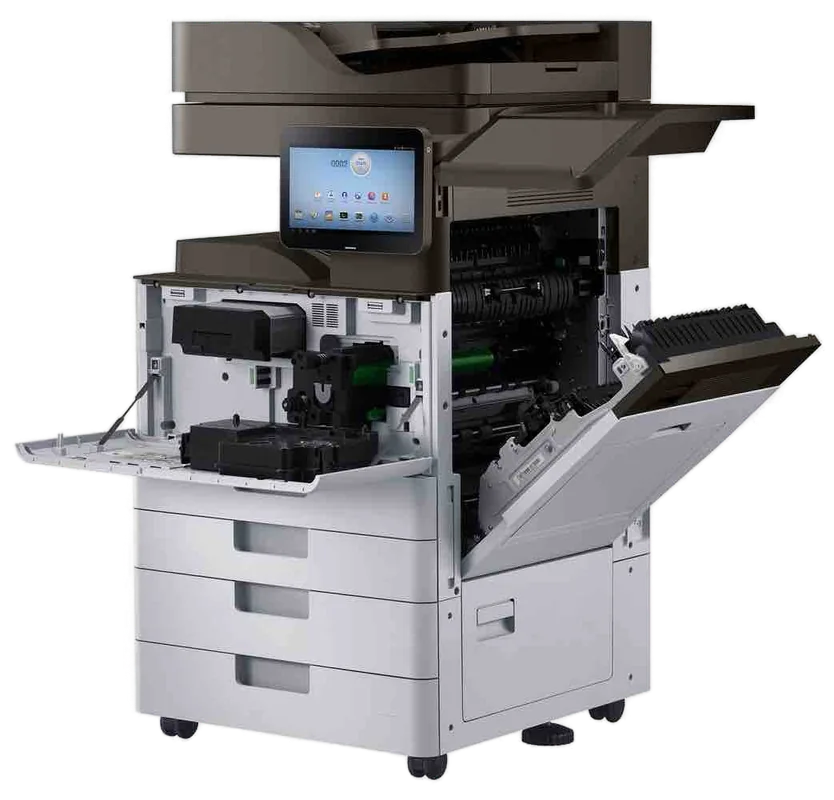
When you press send, the copier makes a file, opens a connection to a mail server using details stored in it, signs in with an account and hands the file over. After that the mail server takes it from there.
Each of those steps can break by itself. The scanning step breaks with a dirty glass or a feeder jam. The connection breaks when the server address, port or security type changes. The sign in breaks when a password changes. The handover breaks when the file is too large or the sender address is not allowed.
The common failures, in the order we see them
| What you see | What it tends to mean | Whose job |
|---|---|---|
| Authentication failed | The mail account password was changed or has expired | Your IT provider, then us to update the machine |
| Cannot connect to server | Server address, port or security type changed, or the machine's own network settings are wrong | IT provider with us |
| File too large | The attachment is above the mail server's limit | You: lower the resolution or send fewer pages at once |
| Sent, but nothing arrives | Spam folder, a sender the mail system blocks, or a rule that quarantines scans | IT provider |
| Only some people receive them | Address book entry wrong, or the domain filters strangers | You, then IT |
| Scan fails halfway | Feeder jam, memory, a very large colour job | You, then us |
| Scan to folder works, email does not | Mail settings only. The scanner is fine | IT provider with us |
The address book that quietly went wrong
Address books on a copier are a source of slow, odd faults. Somebody leaves the company and their address is deleted from the mail system, and the scans to them bounce. A contact is saved with a typo and nobody notices until a signed document is needed. An address book imported from an old machine carries the old domain.
When one recipient never gets scans while others do, look at that entry before anything else. Delete it and type the address again by hand.
Blank, crooked or grey scans
A scan that arrives but looks wrong is a different fault. A blank page can be a document placed face the wrong way, or the scanner not reading. A skewed one points at the feeder rollers or the guides. Grey backgrounds on a good original are often a setting for the original type, and streaks go back to the glass and feeder strip, as the black lines guide describes.
Medical and legal offices notice these quickest because the scan becomes the record. Check a scan on screen before the paper original is filed or sent for shredding.
The password nobody told the copier about
A fair share of scan to email faults trace back to a mail account that the copier signs in with. Someone in the office or the IT provider has tightened security, forced a password change or turned on a stricter sign in method, and the copier carries on trying the old one.
Several mail systems have been withdrawing the older basic sign in methods that copiers depended on, which is a good reason a machine that worked for years can stop without anyone touching it. The fix is a new method or a different setup on the mail side, and our technicians work with the IT contact to change the machine's stored details once they have the right ones.
If you have a new IT provider, ask them whether anything changed on the mail server. It is the first thing we would ask.
Size, resolution and colour
A fifty page colour scan at high resolution makes a very large file. Many mail systems refuse anything above ten or twenty megabytes, and some silently drop the message. If you scan whole patient files, contracts or strata minute books, send them in batches, drop to black and white where colour is not needed, and use a lower resolution for reading copies.
Look at the file format as well. A searchable PDF is bigger than a plain image PDF. Compact PDF settings, where the machine has them, make a noticeable difference.
When the scan arrives, but not where you expected
- Check the sender address the copier uses. Some mail systems send messages from an unfamiliar address straight to junk.
- Look in the junk and quarantine folders of the recipient, not only the inbox.
- Ask the IT contact to search the mail logs for the sender and the time.
- Try sending to a personal address outside the company. If that arrives, the internal filter is the cause.
- Try a small, plain one page scan. If it arrives, the earlier file was too big or too fancy.
Scan to folder and scan to me
Many offices use scan to a shared folder as well, or a scan to me button tied to the person signing in. Those have their own failure patterns: a folder path that changed when the server was replaced, a password on the shared account, a permission removed in a clean up. The error on the panel normally names the problem.
When the folder scan works and the email scan does not, the copier is healthy, and the cause is in mail details. When neither works, check the network first.
Mail systems that changed under the copier
Offices move to a new mail platform, switch provider or tighten their security policy, and nobody thinks to tell the copier. Scans carry on failing until someone remembers the machine is a mail sender like any other. If the change was recent, put the copier on the checklist for the next one.
A sensible habit is a single shared mailbox just for the copier, with its own password that never expires on a schedule. It keeps scan to email independent of any one person's account, and when a staff member leaves, nothing at the machine breaks.
How we handle it on site
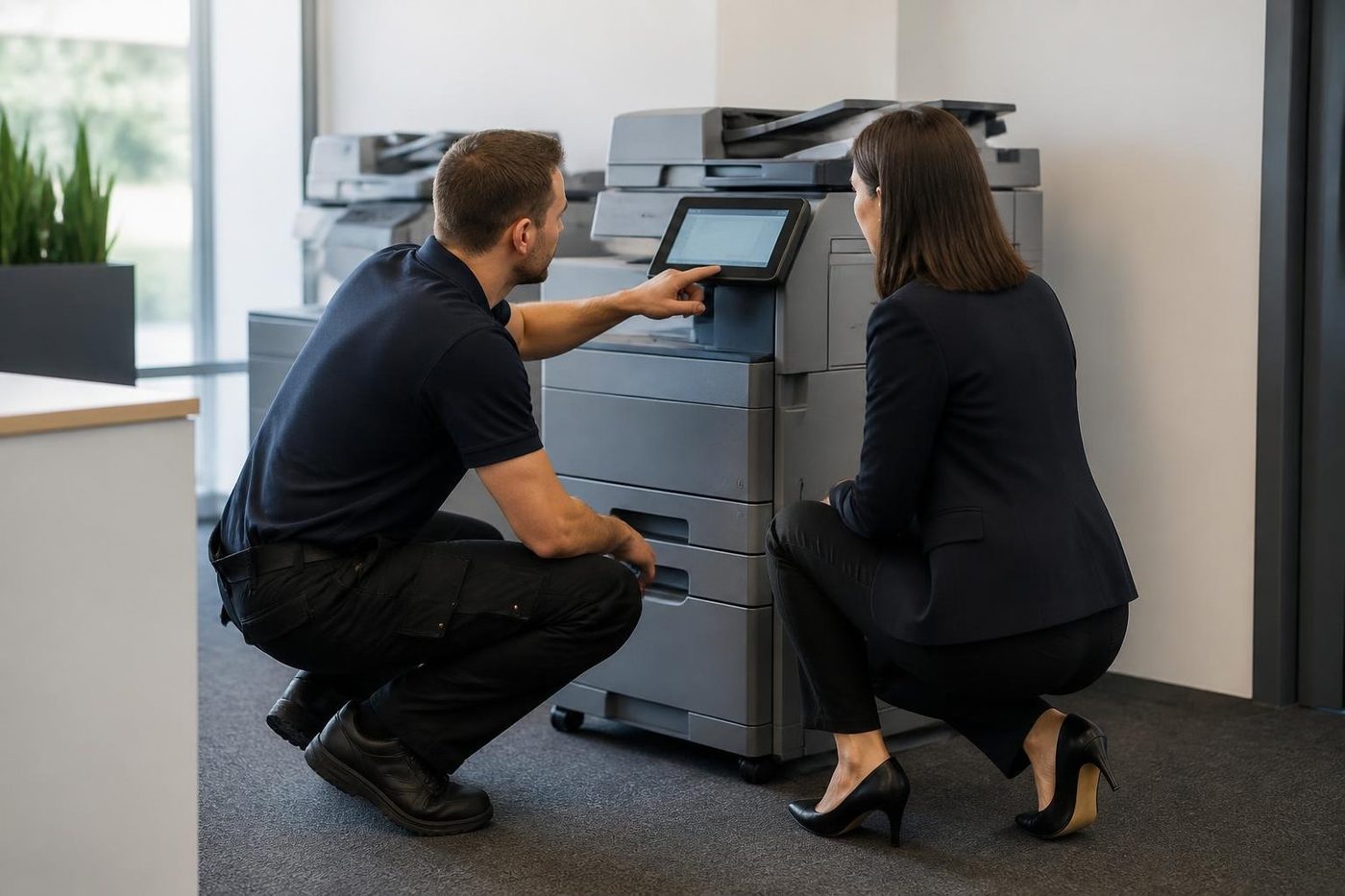
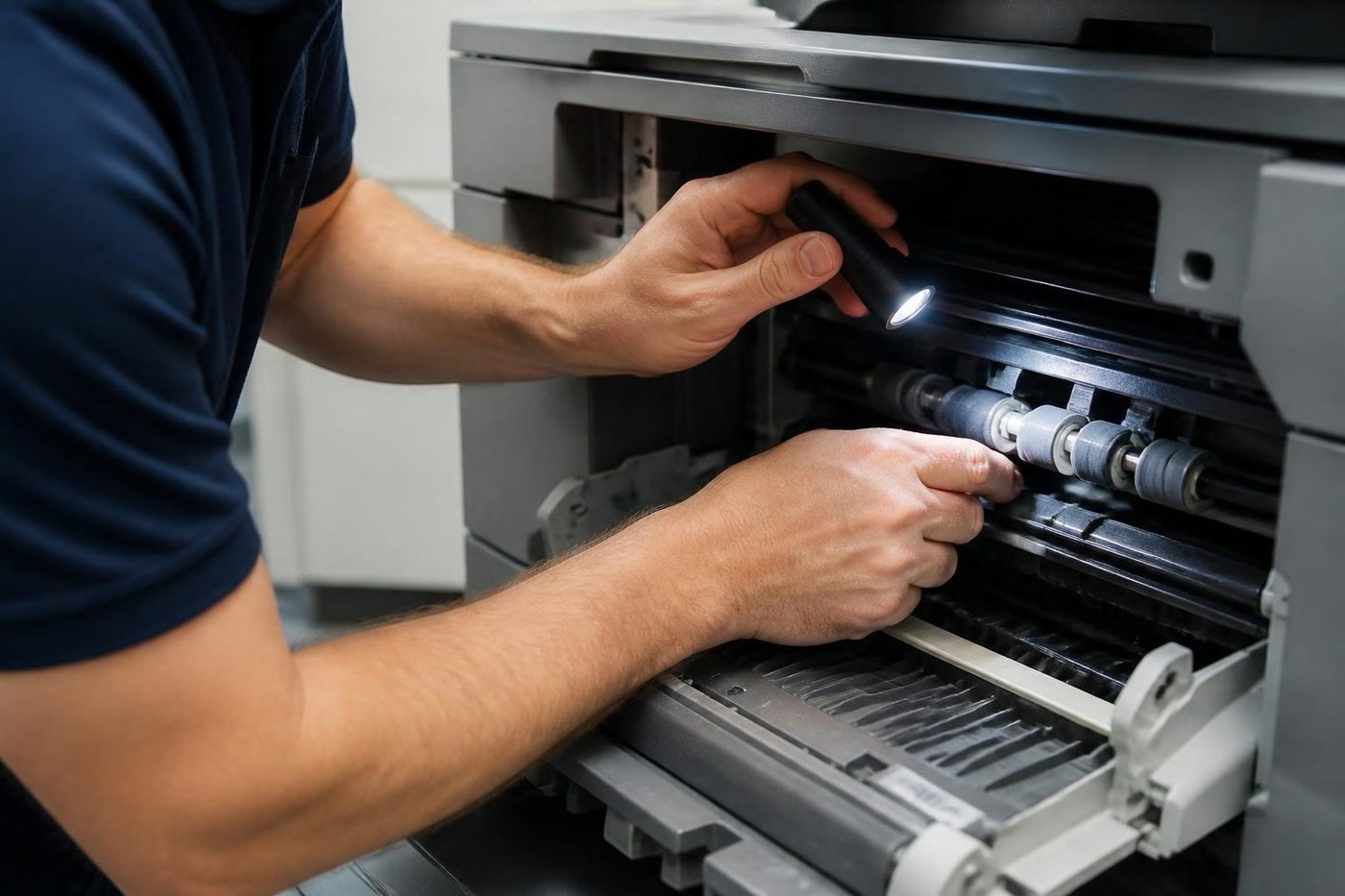
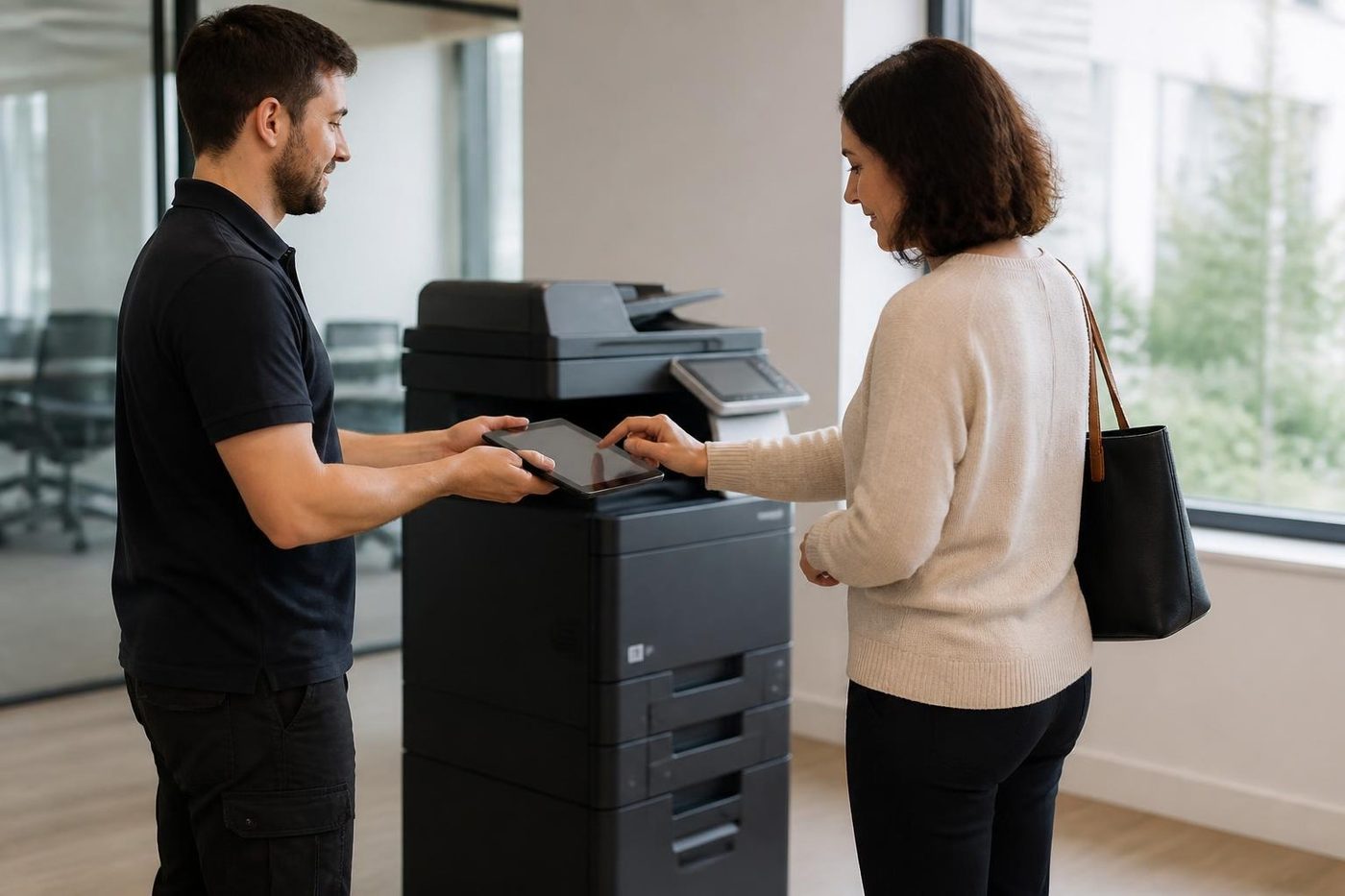
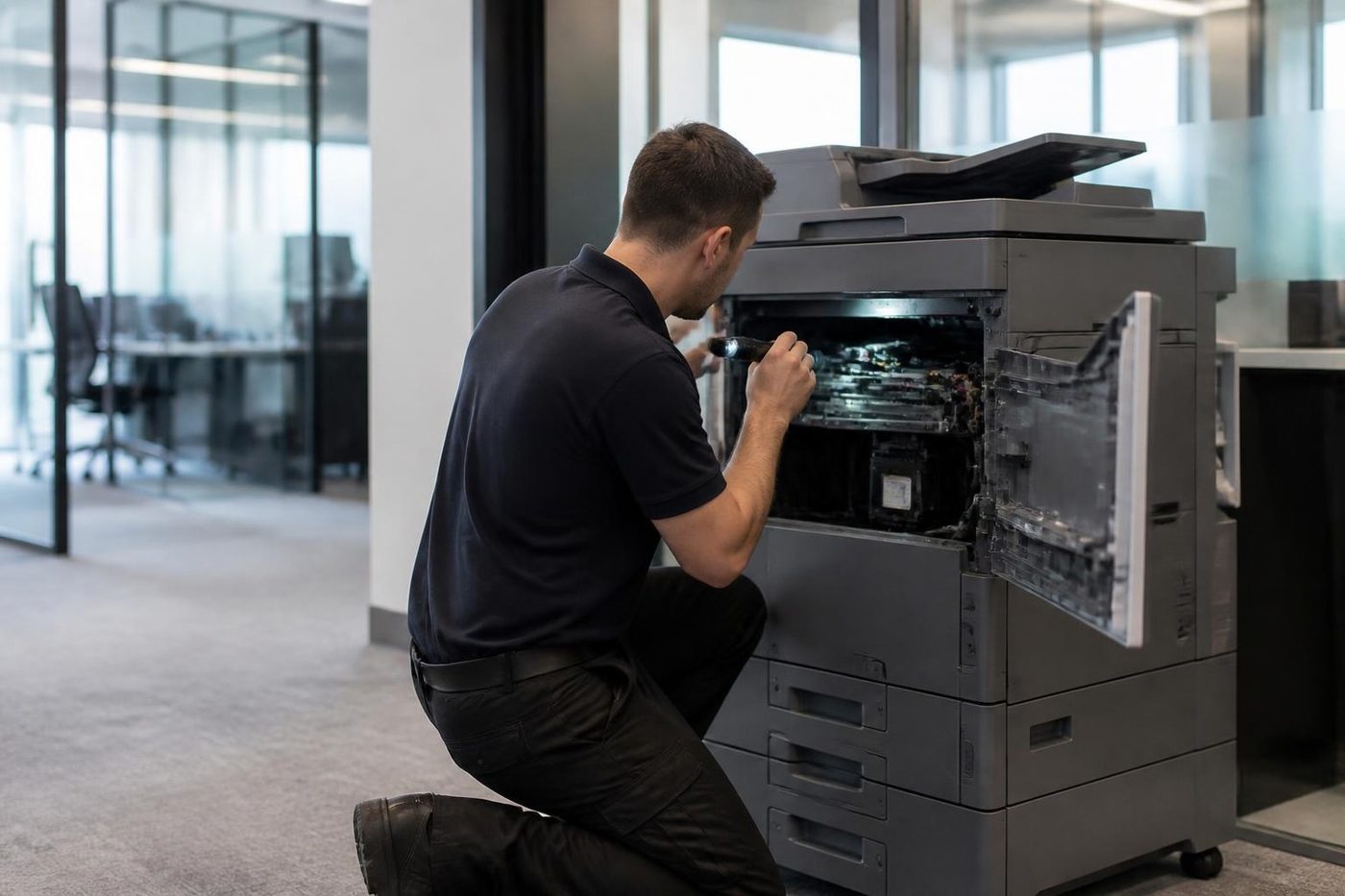
We check the machine's own network settings, test the connection to the mail server, check the sign in, send a test scan and read the response. Most repairs end with changed settings, and where the cause is outside the copier we say so and tell your IT contact what to look at.
Technicians are trained, experienced and certified, and the visit is at your premises. We talk the price through on the phone before anyone is booked, and settings we change are written down for the next person.
Transfer belts
A crease in the belt shows on every page
The transfer belt is thin, delicate and expensive, and it is the part a careless hand damages most easily. One crease from a clumsy lift, or a smear of skin oil, and every page carries the evidence.
If your colour copies show a faint stripe in one colour only, ring and describe it. Belts and drums leave different signatures, and the pattern usually tells us which one to bring.
- Handled by the edges. No finger pressure on the working surface.
- Colour faults decoded. One stripe in one colour narrows the search.
- Bench kept clear. Nothing is laid on the belt, ever.
Keep reading
 Copier and printer faultsPick the symptom, get the next step.Copier not printingThe job goes in, nothing comes out.Printer offline and network faultsThe printer that vanished overnight.Copier error codesReading a panel code, and what to note down.
 Photocopier repairsAny make of office copier, repaired where it stands.
Buy, sell and lease
Buy, sell and lease commercial copiers on the Gold Coast
We also sell new and refurbished commercial copiers and buy used ones. Same team, same technicians.
A few recent visits
Common questions from Gold Coast offices
Why has scan to email stopped on the Gold Coast copier we have had for years?
The usual cause is on the mail side: a changed password, a stricter sign in method or a new server address. The copier keeps using the old details until someone updates them.
The copier says sent but nobody got it. Where is it?
Check the recipient's junk and quarantine folders first, then ask your IT provider to search the mail logs.
Does the file size matter?
Yes. Large scans are refused by many mail systems. Lower the resolution, scan in black and white, or send fewer pages at a time.
Can I fix it from the copier panel?
You can check the messages and try a small test scan. The server details are best changed with your IT contact.
Scan to folder works. Is the copier broken?
No. That points to mail settings, not the scanner.
Do you need our IT provider involved?
Often, yes. We update the copier, they supply the correct mail details and fix any filtering.
Will it keep working after you fix it?
It will keep working until something on the mail side changes again. Tell us when your IT arrangement changes.
How is the price set?
On the phone, before anyone is booked.