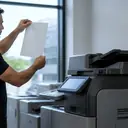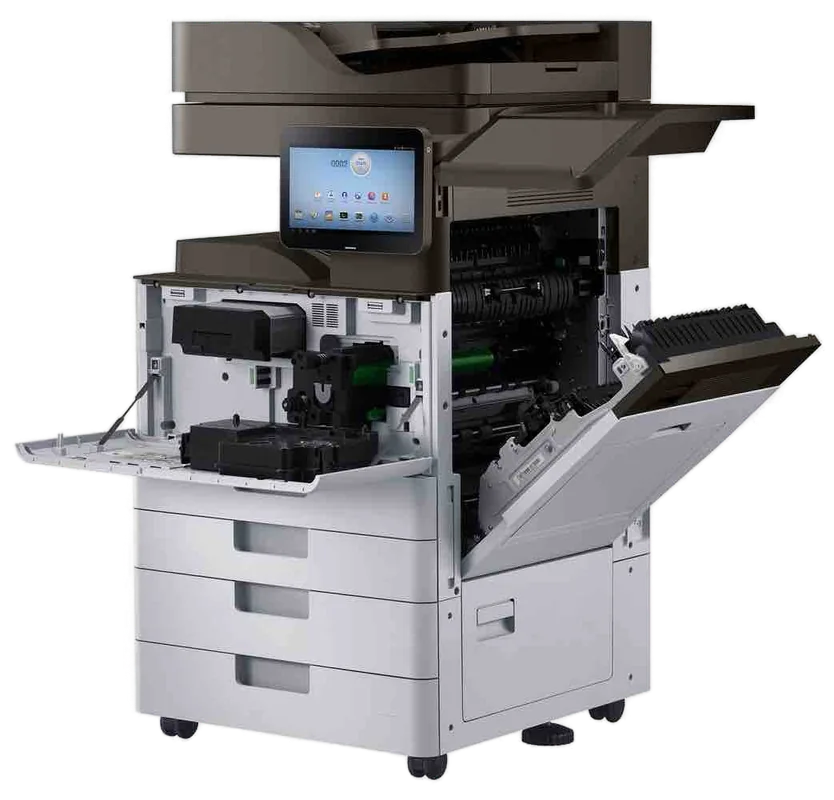
If you searched photocopier service near me, you are likely dealing with a big machine that is part of how the office runs. This page covers the makes, the common copier faults, what a visit involves, planned service and where on the Gold Coast we attend.
Photocopier service near me means a technician at the machine
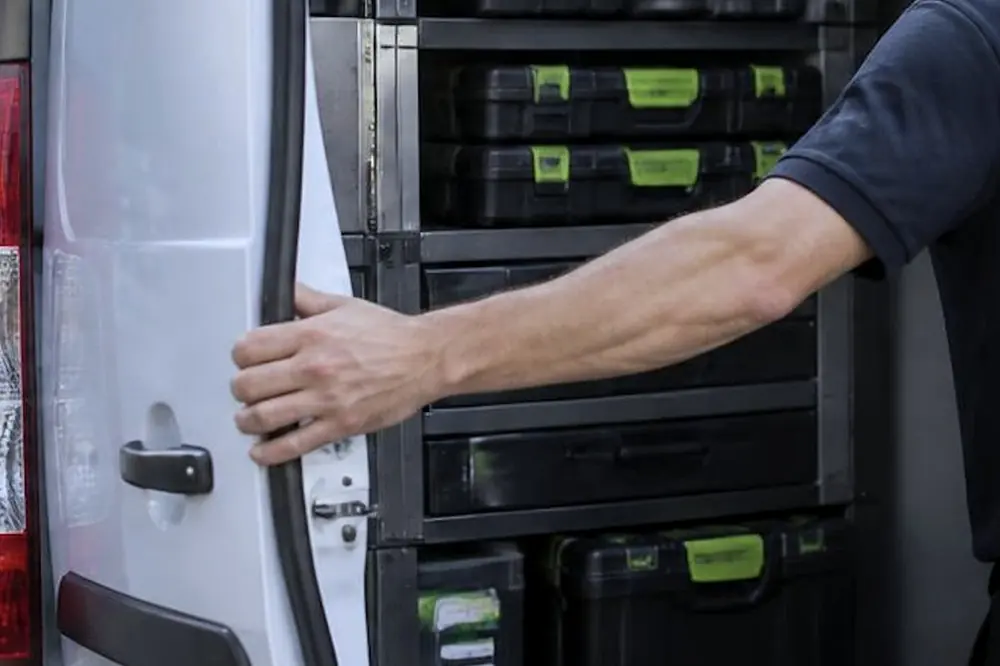
A large office copier is heavy, wired in and often joined to your network, your scan folders and your user codes. Nobody lifts it into a car. So the useful meaning of near me is a certified technician who arrives at your premises with the parts and tools for the make on your floor.
We serve commercial clients only, such as offices, practices, schools, councils, warehouses and strata. The machine is looked at where it sits, with its paper, its network connection and the people who use it close at hand. That often saves time on the fault itself, because the technician can see how the machine is used.
Copier makes we service
Each maker builds its machines differently, and each has its own error codes and parts. We service copiers from Toshiba, Kyocera, Fujifilm, Xerox, Fuji Xerox, Canon, Ricoh, Konica Minolta and Sharp.
| Make | Typical lines on an office floor | Page |
|---|---|---|
| Toshiba | e-STUDIO | Toshiba photocopier repairs |
| Kyocera | ECOSYS and TASKalfa | Kyocera photocopier repairs |
| Fujifilm and Fuji Xerox | Apeos and earlier Fuji Xerox lines | Fujifilm repairs and Fuji Xerox repairs |
| Xerox | AltaLink and VersaLink | Xerox photocopier repairs |
| Canon | imageRUNNER | Canon photocopier repairs |
| Ricoh | Multifunction machines | Ricoh photocopier repairs |
| Konica Minolta | bizhub | Konica Minolta repairs |
| Sharp | Multifunction machines | Sharp photocopier repairs |
Many offices have more than one maker, because a machine was added at a different time or for a different floor. A mixed fleet is not a problem to hide. Say what you have when you ring, and the post on a mixed fleet of brands on one service call explains how to describe it.
Error codes: write down the exact code
A copier that stops with a code is telling you where to look. The code differs by maker and by model, and the same number can mean different things on different machines. So the useful move is to record it exactly, with any text beside it, and note what the machine was doing when it appeared.
Some codes clear after the machine is switched off and on once. Others return at once, which says the cause is still there. Restarting again and again does not clear a fault that is still there. Ring and read the code out.
The pages on copier error codes, Toshiba e-STUDIO codes and Kyocera TASKalfa codes help you describe what you see. For Ricoh, the post on Ricoh SC codes explains the format.
Paper jams, misfeeds and noise
A jam is the most visible copier fault, and it often has an earlier sign. A new squeal, a grinding sound or sheets taken in crooked can come before a jam as rollers and gears wear. The page on grinding and squealing covers the noises, and paper jams covers the stoppages.
If the machine jams, follow these cautions.
- Leave the machine on unless the manual says to switch it off, so the display can show where the jam is.
- Do not reach into or past any part marked hot. If the jam is at or near the fuser, shut the machine down properly and let it cool for the time the manual states.
- Remove the paper in the direction the label inside the cover shows, and keep it whole so no scrap stays behind.
- If it jams again soon, stop and ring. A repeat jam at the same place can mean something worn or dirty that clearing the paper will not fix.
If the machine takes two sheets at once or none, the post on a copier that takes two sheets or none helps you tell paper problems from roller problems.
Black lines, streaks and smearing
A mark that repeats on every page tells you something. A line in the same place on each page may point to a drum, a toner unit or the glass. Toner that rubs off with a finger may point to the fuser. Check where the mark appears before you ring.
One simple test is useful. Print a page from a computer and make a copy of the same page. If the printed page is clean and the copy shows the line, the mark may come from the scanner glass or the document feeder rather than the print engine. If both show it, the cause is further inside. The posts on cleaning the glass and feeder without damage and the pages on black lines and streaks and toner smearing go further.
Scan to email and other multifunction jobs
A modern copier is also a scanner and a document sender. When scan to email stops, the fault is often outside the copier itself. A changed password, a mail server setting or a network change can each be the cause. The machine can be fine while the path it uses to reach your mail is not.
That is why a visit to the machine is useful: the technician can look at the settings and the connection together. The page on scan to email not working sets out what to note, and the post on scan to email failures, SMTP and authentication explains the terms. If a machine shows as offline, see offline and network faults. A machine that copies well but will not print or scan can still have a network fault. A good copy only shows that the print engine works.
What a copier service visit involves
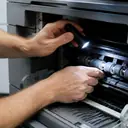
Every company runs visits in its own way, so ask on the call what you want to know. In general, a good copier visit follows this pattern.
- The technician hears from you what the machine is doing and when it began.
- The technician checks the paper path, the wear parts and the history on the machine.
- The repair is made, usually on the spot. 98% of repairs are done on the first visit.
- Test copies and prints are run, and you see the result before the technician leaves.
Same day service is available, but it depends on the fault and the diary. If the line is busy, the call is logged and returned. Say if a deadline sits behind the fault.
Large office copiers and where they sit
A big copier, such as an A3 floor standing machine, makes heat and uses a lot of paper. Where it sits matters. Tight cupboards, a hot corner or a spot beside a window with direct sun can shorten the life of parts. The post on where to put a copier: heat, space and airflow explains the points. Allow space around the machine for panels and trays to open, because a technician needs room to work.
Planned copier service
Fault repair is the main job, and planned service is the second. We can provide regular maintenance visits and planned service contracts for copiers. In general terms, a planned visit cleans the paper path, checks wear parts against their page ratings, runs test copies and leaves a note of what was done and what is coming due. The scope and the price are agreed on the phone. Planned service suits a copier that the whole office depends on, because it moves the work to a time you pick. See the photocopier repairs page for the fault side.
Photocopier services near me across the Gold Coast
Several suburbs have their own copier service page. Each one names the districts and the kinds of premises there.
- Beachfront and the Broadwater. Tourism, hospitality and professional offices. Surfers Paradise, Broadbeach, Southport and Bundall.
- Southern coast. Small offices and clinics. Burleigh Heads, Currumbin, Palm Beach and Tallebudgera, Currumbin Waters and Elanora and Tugun, Bilinga and the airport.
- Inland and southern business centres. Health, education and trade. Robina, Varsity Lakes, Nerang and Mudgeeraba and Reedy Creek.
- Central suburbs and waterways. Offices, retail and trade. Miami and Mermaid Waters, Labrador and Biggera Waters, Molendinar, Ashmore and Carrara and Paradise Point, Runaway Bay and Hope Island.
- North. Growing suburbs and industrial areas. Helensvale and Coomera, Pacific Pines and Oxenford and Arundel and Yatala.
- The border and New South Wales. Tweed Heads observes daylight saving and Coolangatta does not, so agree the time when you book. Coolangatta and Tweed Heads, Kingscliff and Pottsville, Murwillumbah, Byron Bay and Ballina, Mullumbimby and Lismore.
The citywide photocopier service Gold Coast page and the list of areas we service give the whole picture. If you run printers as well as copiers, the printer pages cover commercial printers, HP, Lexmark, Brother, OKI, Samsung, Epson and Zebra.
Which page to read first
| What you see | Start here |
|---|---|
| A code on the display | Copier error codes |
| Paper stuck or crumpled | Paper jams |
| Lines or marks on copies | Black lines and streaks |
| Will not print at all | Copier not printing |
| Not sure if it is worth fixing | Is my copier worth repairing |
If none fits, ring or use the contact page and describe what the machine is doing.