A printer joins wifi the way a phone does. It looks for a network name, offers a password and asks for an address. When it will not join, one of those three steps has failed, and the panel on the printer usually shows which one. That makes this a fault you can narrow down in a few minutes, mostly without touching a computer.
Read the printer before you touch the router
Open the wireless or network settings on the printer panel. The exact menu name varies by model. Look for three things: the network name it is set to join, whether it says connected, and the address it was given. A printer with no address has not finished joining, whatever the little wifi icon suggests.
If the printer has a button to print a network or wireless report, print one. Many models include an error code or a plain reason for the last failed attempt. Keep the page, because it is the quickest way to describe the fault to whoever looks after your network.
Is it trying to join the right network?
This is the first thing to check after anyone has touched the router. Printers remember the network they were set up on. If the router was replaced, the network renamed or the password changed, the printer keeps asking for the old arrangement and gets nowhere.
- Compare the network name on the printer with the name your phone shows for the office wifi, letter for letter. Names such as Office and Office_5G look alike and are different networks.
- If the network name is hidden, the printer may need the name typed in by hand during setup.
- Run the wireless setup again from the panel and choose the network from the list it finds. Enter the current password slowly. The characters that cause trouble are a capital I against a lower case l, and a zero against a capital O.
If the printer finds no networks at all, the problem may be signal rather than settings. That is covered below.
Two bands, one network name
Modern routers send wifi on two bands, usually called 2.4 GHz and 5 GHz. Many printers can use only the 2.4 GHz band, and some newer models can use both. The specification sheet for your model will say. A router that shares one name across both bands decides for itself which band to offer a device, and a printer that supports only one band can fail to join in a way that looks like a wrong password.
If your router offers a separate name for each band, try joining the printer to the 2.4 GHz one. If it only offers one shared name, whoever manages the router can look at its band settings. Do not change the whole office network to suit one printer without asking them first.
Password and security settings
A printer can reject a password that is perfectly correct for a laptop. Older printers may not support the newest wifi security setting, and a router that was moved to a newer setting during an update can leave an older printer unable to join. Long passwords with unusual symbols are another trap, since a few printer panels make some characters hard to enter.
The fix is a conversation with whoever manages the router, not a quiet reduction in security. They can tell you what the network uses and whether your model supports it. If it does not, a cable removes the question altogether.
Guest wifi, staff wifi and networks that need a login
Printers often end up on the wrong network by accident. A guest network is commonly set up so that devices on it cannot see each other, which is sensible for visitors and useless for a printer. A printer on the guest network can show as connected and still be invisible to every office computer.
Put the printer and the computers that print to it on the same network. Some office networks also ask each person for a username or a certificate before they can join. Many printers cannot do that. If your network works that way, the printer usually needs a cable or a network set aside for devices, and the person who manages the network is the one to arrange it.
Signal, walls and where the printer sits
Printers are often in copy rooms, store rooms and corners with metal cabinets, brick or concrete around them. All of those weaken wifi. In a tower at Surfers Paradise or Broadbeach, lift cores and concrete floors add to the problem, and many neighbouring networks can share the same channels. That is one reason a printer can work for weeks and then drop off.
A simple test: stand next to the printer with a phone on the office wifi and look at the signal. If the phone shows a weak signal there, the printer has the same problem. Moving the printer, or adding an access point nearer to it, is a job for whoever runs the network. Our page on photocopier service in Surfers Paradise and the one for Broadbeach cover the machines themselves.
Why a cable is steadier for a shared machine
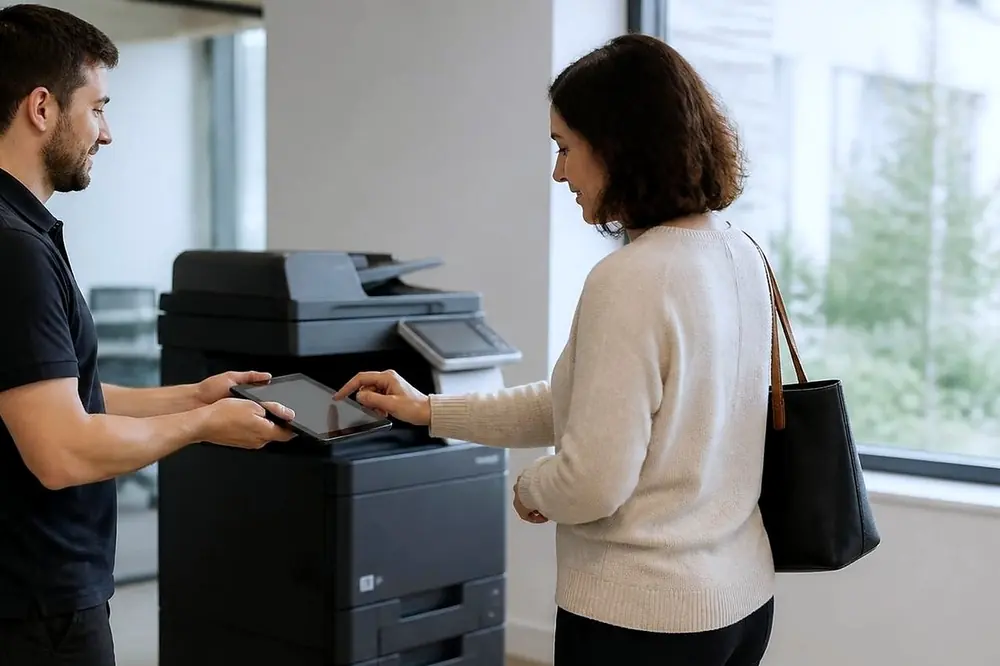
A wired connection has no password to get wrong, no band to choose and no signal to lose. For a printer that a whole office depends on, a cable to the nearest network point or switch removes the most common wifi causes in one step. Wifi is still a good choice for a printer used by one or two people close to the router, or where running a cable is not practical.
Some printers turn their wifi off when a cable is plugged in, and some keep both active. If the printer has a setting for this, check it so that the printer is not holding two addresses at once.
Stop the address from moving
A printer that joined the network can still go missing if its address changes. Routers usually hand out addresses automatically, and the printer can be given a different one after a restart or a power cut. The computers keep asking the old address and the printer seems to vanish.
The lasting fix is a reserved address for that printer, set on the router or server by whoever manages it, so the printer always gets the same one. The printer then stays findable after power cuts, which matter on the Gold Coast after summer storms. If the printer joined wifi but still shows offline on the computers, our page on printer offline and network faults goes through the port, queue and address checks.
When the checks run out
If the printer will not join after a correct password, the right band and a clean setup, stop changing settings. Repeated attempts can fill the panel with half finished setups and make the real cause harder to see. This table shows where each result points.
| What you see | What it can point to |
|---|---|
| The printer finds no networks | Weak signal, or the wireless part of the printer needs attention |
| It finds the network and fails to join | Wrong password, a band it cannot use, or a security setting it does not support |
| It joins and has no address | A router or address setting, so a job for whoever manages the network |
| It joins and computers cannot see it | A guest network, or a different network from the computers |
| It joins and then drops again | Signal, a changing address, or the printer going to sleep |
The first row is the one where a technician may need to open the machine. The others are network matters, and a technician can check both ends in one visit. For printers that are repaired at the premises, commercial printer repairs sets out what is covered, and the list of copier and printer faults helps if the symptom turns out to be something else. To book a visit, ring Laser on (07) 3096 0331. The line can be busy, and when it is the call is logged and returned.
Phone (07) 3096 0331 with the make, the model and what it is doing. The price is agreed on the call, and same day depends on the fault and the diary. If the line is busy, the call is logged and returned.