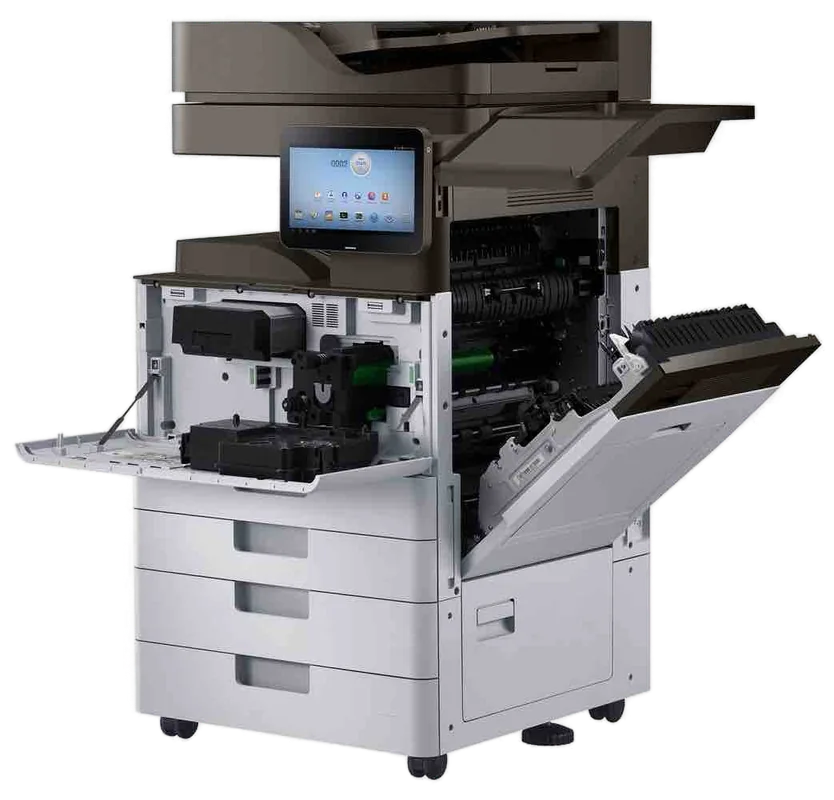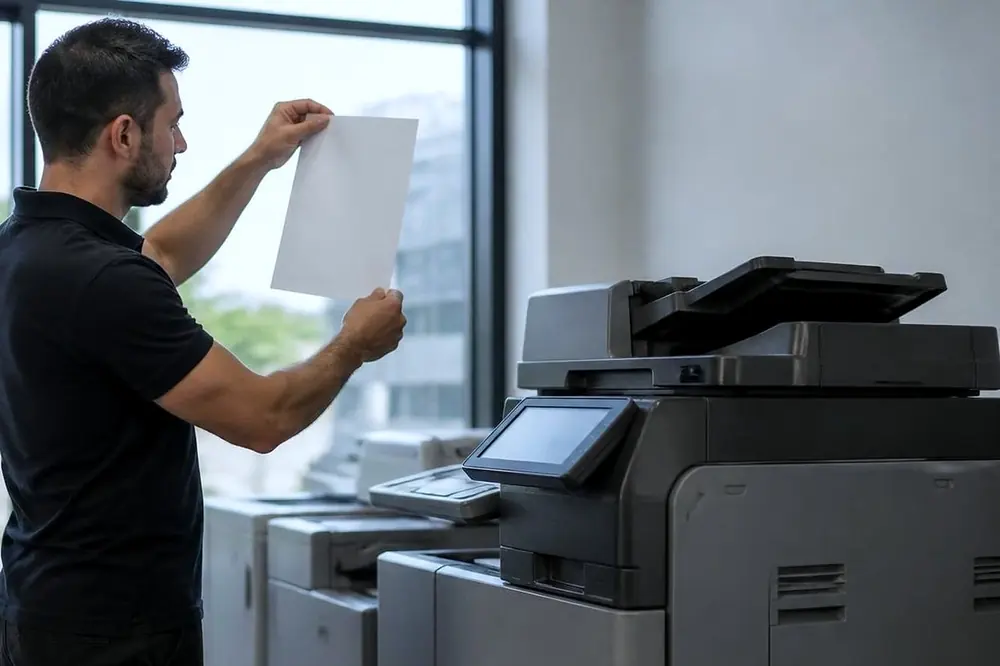
Printing blank pages from an office printer has two families of cause, and they need different people. One is a fault inside the machine. The other is a fault in what the computer sends to it. Three short tests separate the two, and none of them needs tools.
The tests, in this order
- Print a configuration or test page from the panel. The exact menu name varies by model. This page is made by the printer itself, with no computer involved.
- Print a test page from the computer. On Windows, open the printer's properties and choose Print Test Page. This sends a simple page through the driver and the queue.
- Print your real document, then a different one. Try another program, or the same document from another computer.
Where the first page that fails sits is the answer. Blank at step 1 means the machine. Fine at step 1 and blank at step 2 means the driver, port or queue on that computer. Fine at both and blank at step 3 means the document or the program. On a copier, a copy from the glass is a useful extra test. A good copy shows the print engine can put toner on paper, though it does not prove the network, the controller or the print path from the computer are sound.
When the printer itself prints blank
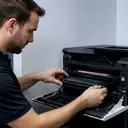
A blank configuration page points inside the machine. These are the usual things to look at, in the order that costs least.
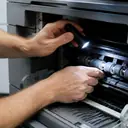
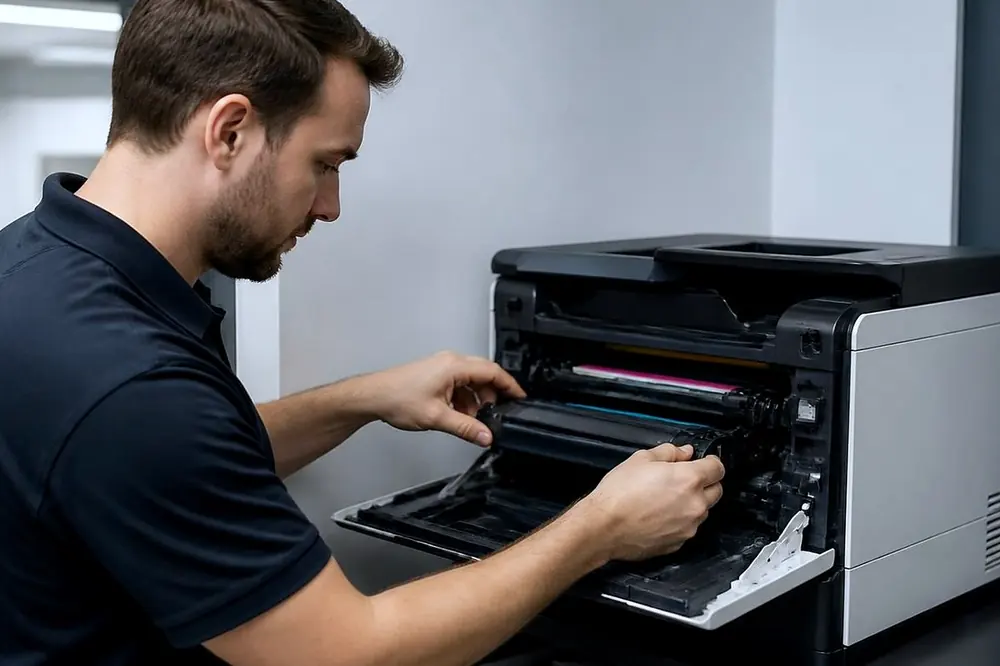
- Protective tape or a seal left on the cartridge. New cartridges commonly ship with a tape or seal that has to be pulled out before use. If the blank pages began right after a cartridge change, this is worth checking first.
- A cartridge not seated. Open the cover, lift the cartridge out and push it fully home. Some models also refuse to print properly with a cartridge the machine does not recognise.
- Toner that has run out. Many printers warn before this happens, but a warning can be missed on a machine nobody walks past. Check the toner level on the panel.
- The drum or imaging unit. On models where the drum is a separate part, one that has worn out or been damaged can leave pages blank or very faint.
- Parts in the print engine. A fault in the laser unit, the transfer parts or the high voltage supply can stop an image reaching the page. These are repair jobs, and nothing on the outside will fix them.
Do not shake a cartridge hard to see if it helps, and do not open the machine past the covers the manual shows. Toner is a fine powder that spreads, and the fuser area is hot after printing.
Blank pages on an inkjet or a label printer
Inkjet business printers such as the Epson WorkForce range have their own cause. Dried nozzles or an empty tank can produce blank pages, and most models have a nozzle check in the maintenance menu. The cleaning cycle uses ink and is not a cure for every case, so run it once and check the result rather than repeating it. Our page on Epson printer repairs covers these machines.
Thermal label printers, such as Zebra models, are common in warehouses, including those in the Arundel and Yatala industrial areas, and they are different again. A blank label can mean the media type is set wrongly, the printer is set to use a ribbon it does not have, or the ribbon is loaded the wrong way round. A label that feeds and prints nothing is worth checking against the setup in the printer's manual before anything else. The page on Zebra label printer repairs sets out what is covered, and the one on the Arundel and Yatala industrial areas is there for those sites.
When only the computer prints blank
If the printer made its own page without trouble, look at what is being sent.
- The driver. A driver that no longer suits the printer, or one that was updated badly, can send pages the printer renders as blank. Removing the printer and adding it again with the current driver from the maker is a fair test.
- The wrong driver for the model. A generic driver chosen because it was close can lead to blank pages on some models. Pick the driver that names your model.
- The program. If one program prints blank and others do not, look at that program's print settings and update it.
- A problem PDF. PDFs with unusual fonts or graphics can print blank. In Adobe Acrobat Reader, the Advanced button in the print window offers Print as image, which can get around some of them. Saving the file again from the source program is another option.
- White text on a white page. It happens in documents that were designed for a coloured background.
Blank pages that are not really blank
Check that the pages are blank before chasing a fault. A single blank sheet at the end of a document can be an empty paragraph or a page break in the file. A blank sheet between jobs can be a separator page set in the driver or on a shared printer. Printing the document to a PDF on the screen first shows whether the blank page is in the file.
Ask who else is affected
On a shared printer, a quick question saves time. If everyone gets blank pages, the cause is more likely at the printer or on the shared queue. If only one person does, look at that person's computer, program or file. The same question works when the printer is used from phones or tablets: if a phone prints fine and a computer does not, the machine is working and the computer side needs the attention.
A short decision table
| What happens | Where to look |
|---|---|
| Panel page is blank | Cartridge, seal, drum, then the print engine |
| Panel page prints, computer test page is blank | Driver, port or queue on that computer |
| Only one program or one file is blank | That program, or the file itself |
| Faint pages rather than blank | Toner level, cartridge seating, drum wear |
| Blank pages began after a cartridge change | Seal or tape, seating, a cartridge the printer does not accept |
When to stop and call
If the printer prints a blank configuration page with a cartridge that is seated, sealed correctly and not empty, stop. The fault is inside the machine and more attempts at cleaning or restarting will not change that. Laser repairs business printers and photocopiers at the customer's premises, with certified technicians, and 98% of repairs are done on the first visit. See commercial printer repairs for what that covers, or the copier not printing page if the machine takes a job and produces nothing at all. The line on (07) 3096 0331 can be busy, and when it is the call is logged and returned.
Phone (07) 3096 0331 with the make, the model and what it is doing. The price is agreed on the call, and same day depends on the fault and the diary. If the line is busy, the call is logged and returned.